A customer lands on a product page and sees size buttons such as S, M, L, and XL, with most options crossed out. Even when the product is still available, the page can look unavailable, and the customer may leave before finding the size that works.
Greyed-out sold-out variants add friction at the moment a shopper is ready to choose. The same problem appears when someone visits /collections/all looking for an available product: Shopify shows an unfiltered mix of current, discontinued, and sold-out items. Both experiences make it harder to buy.
🎯 Quick Summary
- Hiding unavailable sizes and colors keeps the selector focused on options customers can buy
- Shopify's /collections/all page is unfiltered by default and cannot be disabled natively
- Shopify does not provide one built-in setting for both problems
- Hide Out of Stock handles both automatically on the Starter plan ($7.99/mo), with no code
🙈 Hide Sold-Out Variants from the Picker
When size XL is out of stock, Shopify may show it in gray with a strikethrough. That tells an informed shopper what happened, but it also makes the selector feel busy and can make the entire product look unavailable.
Deleting the sold-out variant is the wrong fix. When XL returns, you would need to recreate it, upload its photo again, and restore its variant data. That is slow, easy to get wrong, and unnecessary.
A cleaner manual option is to edit your theme's variant-picker.liquid so it skips variants with zero inventory. It can work, but it needs developer time, may require maintenance after theme updates, and may still leave the variant's photos in the gallery.
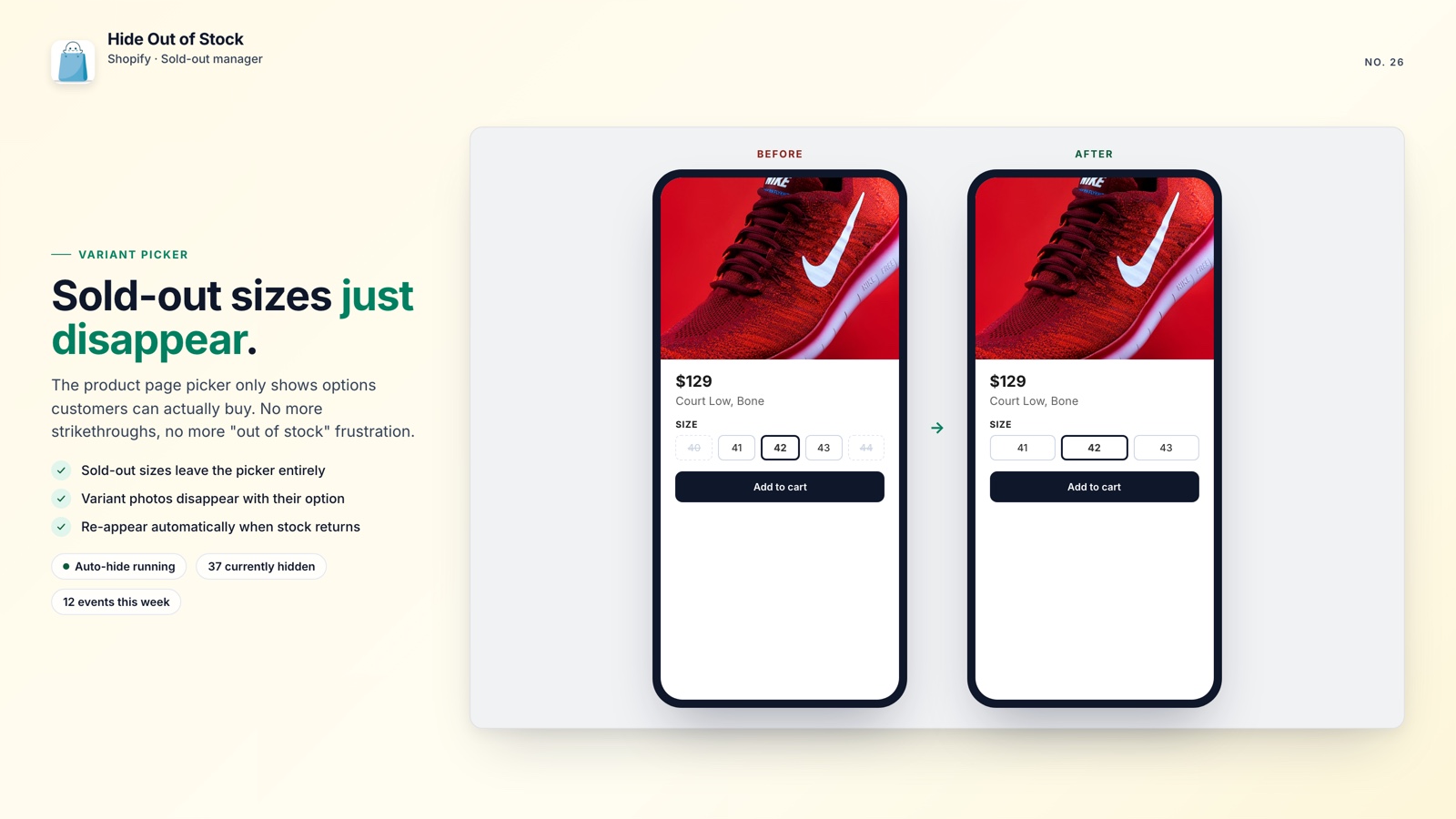
With Hide Out of Stock (Starter and Pro plans), sold-out sizes and colors disappear from the picker automatically. There is no code to maintain and nothing to delete: the variant and its photo remain in your product data, hidden only from shoppers. When you restock, they reappear automatically.
This is especially useful for apparel, footwear, and any product with a wide size range. Three available sizes look intentional. Eight sizes with five disabled options look like a store problem, even when the product is still a good fit for the shopper.
💡 Pro tip: Pair variant hiding with smart collection sorting so products with inventory stay near the top. See how to stop out-of-stock products from showing at the top of a Shopify collection.
🗺️ Fix the /collections/all Page
Shopify generates a /collections/all page automatically, and you cannot turn it off natively. It can show every product in your store, including sold-out items, discontinued products, and old listings that no longer belong in your storefront.
Google may index the page, and visitors who land there see a broad, unfiltered catalog instead of your best products or most useful collections.
The usual workaround is to create a smart collection that filters out unavailable products, then add a URL redirect from /collections/all in Shopify admin. It works, but someone has to maintain the collection rules and update the redirect as your catalog changes.
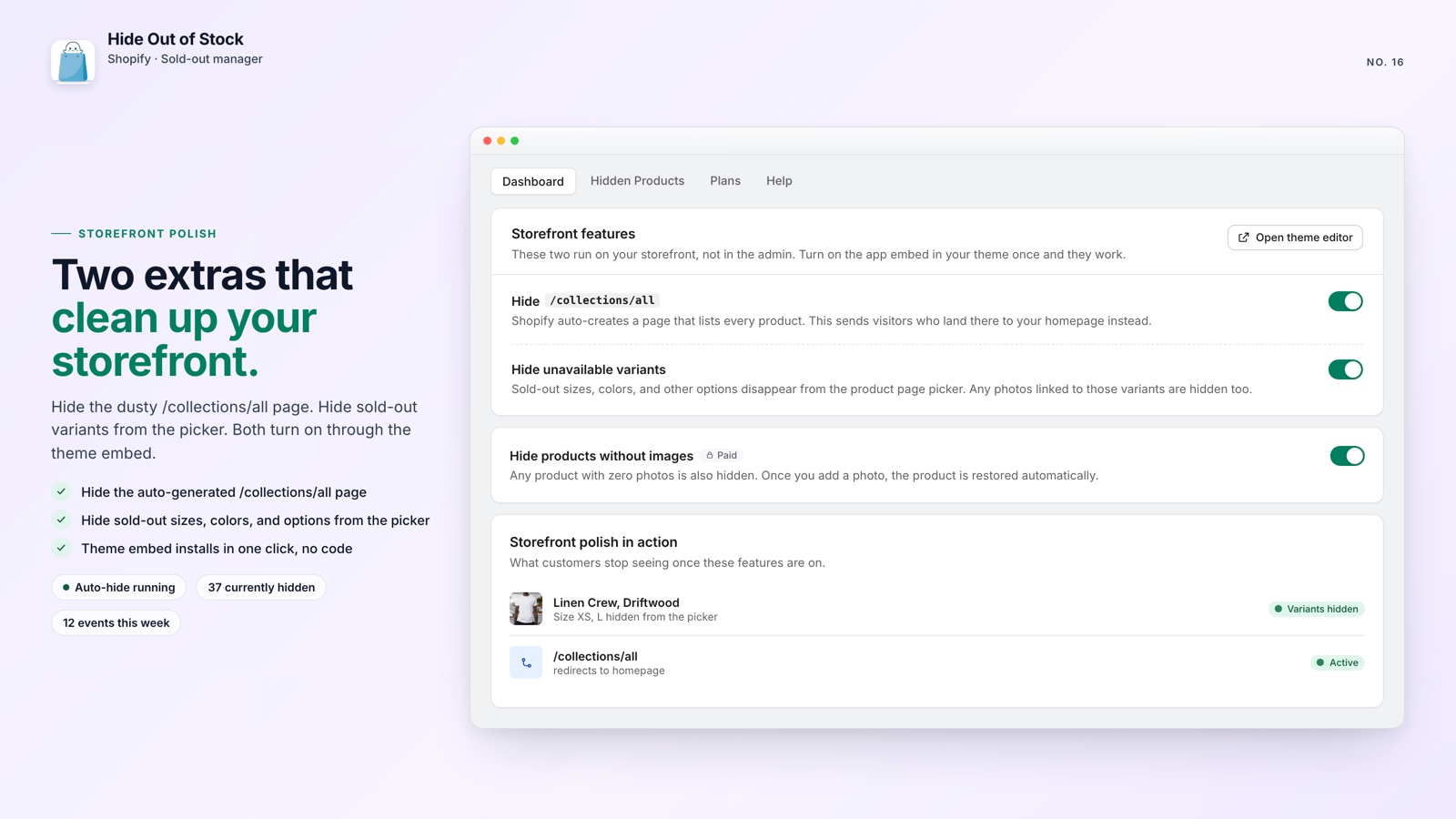
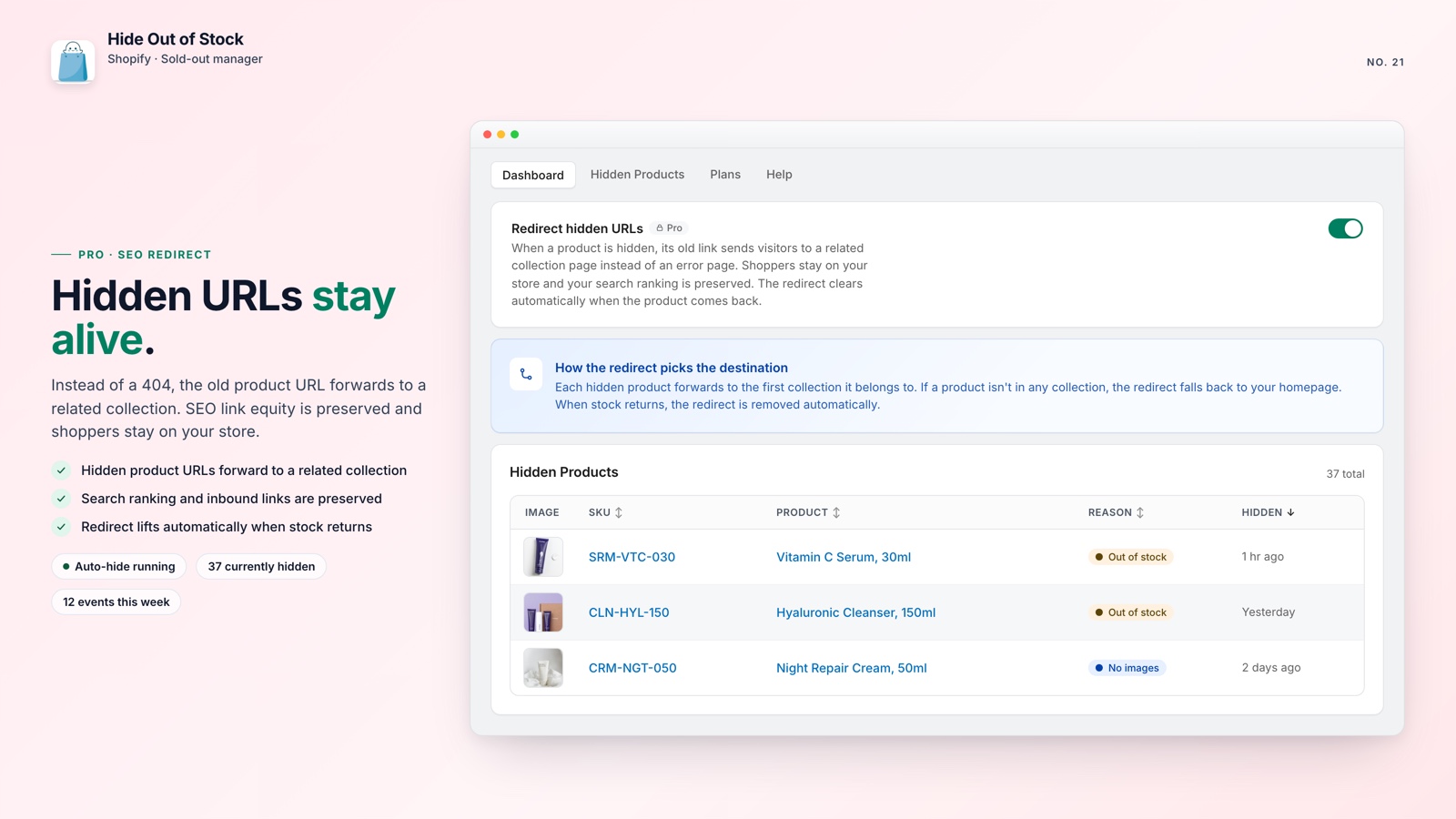
Hide Out of Stock handles this on Starter and Pro plans. Turn on the app's embed once in your theme editor (App embeds panel), then flip the redirect toggle in the dashboard, and the app sends visitors from /collections/all to your homepage instead of an unfiltered catalog.
For a deeper look at the risks and available fixes, read how to hide the /collections/all page on Shopify.

Show shoppers what they can buy
Hide Out of Stock removes sold-out variants from the picker and redirects /collections/all, with no theme code or manual redirect work.
What you get:
- Sold-out variants disappear from the product page picker automatically
- Variant photos are hidden too, keeping the image gallery focused
- Variants reappear as soon as stock returns, with no manual publishing
- A one-time theme embed plus one toggle redirects /collections/all to your homepage
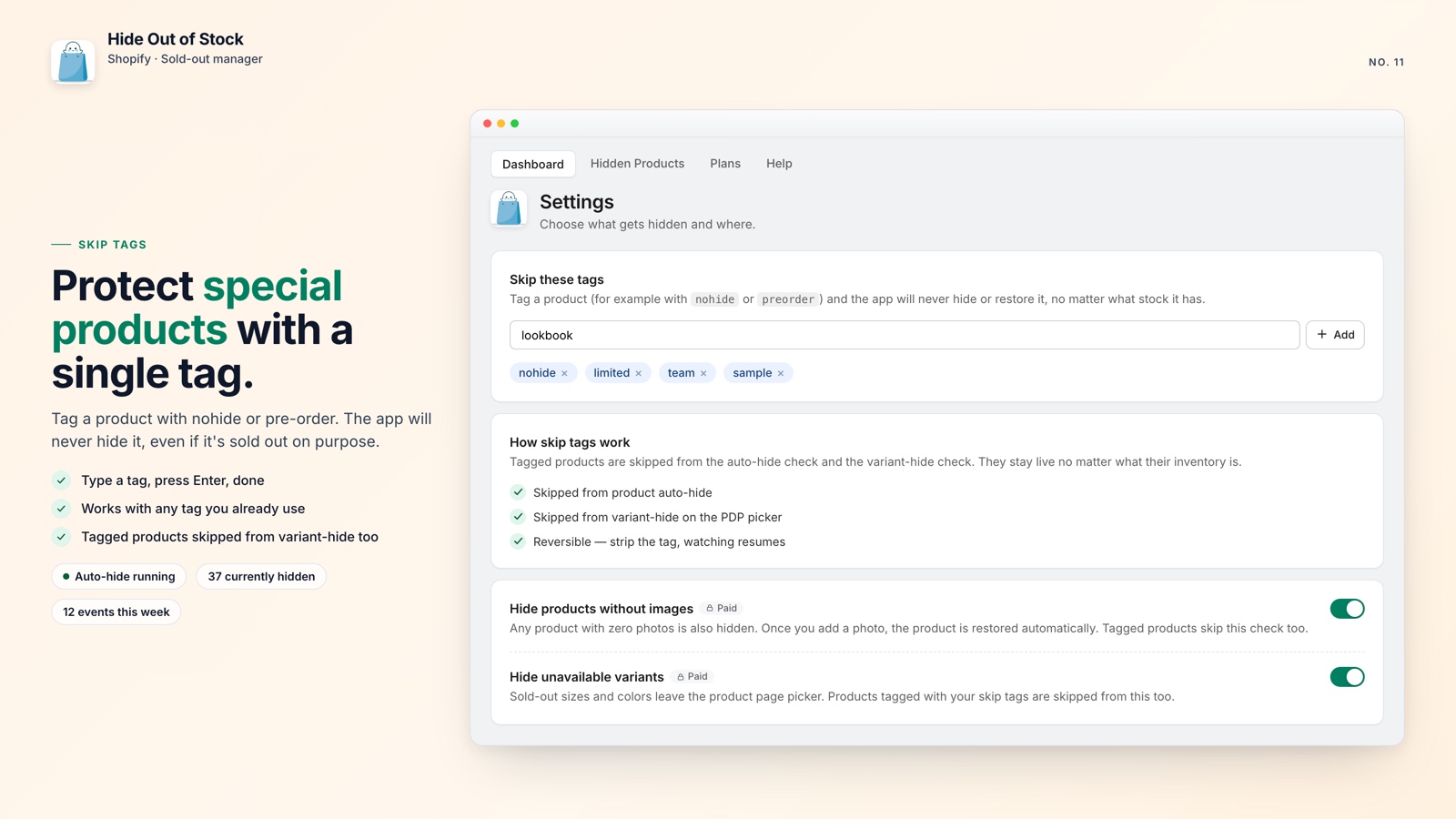
- Tag exclusions keep pre-order and coming-soon products visible
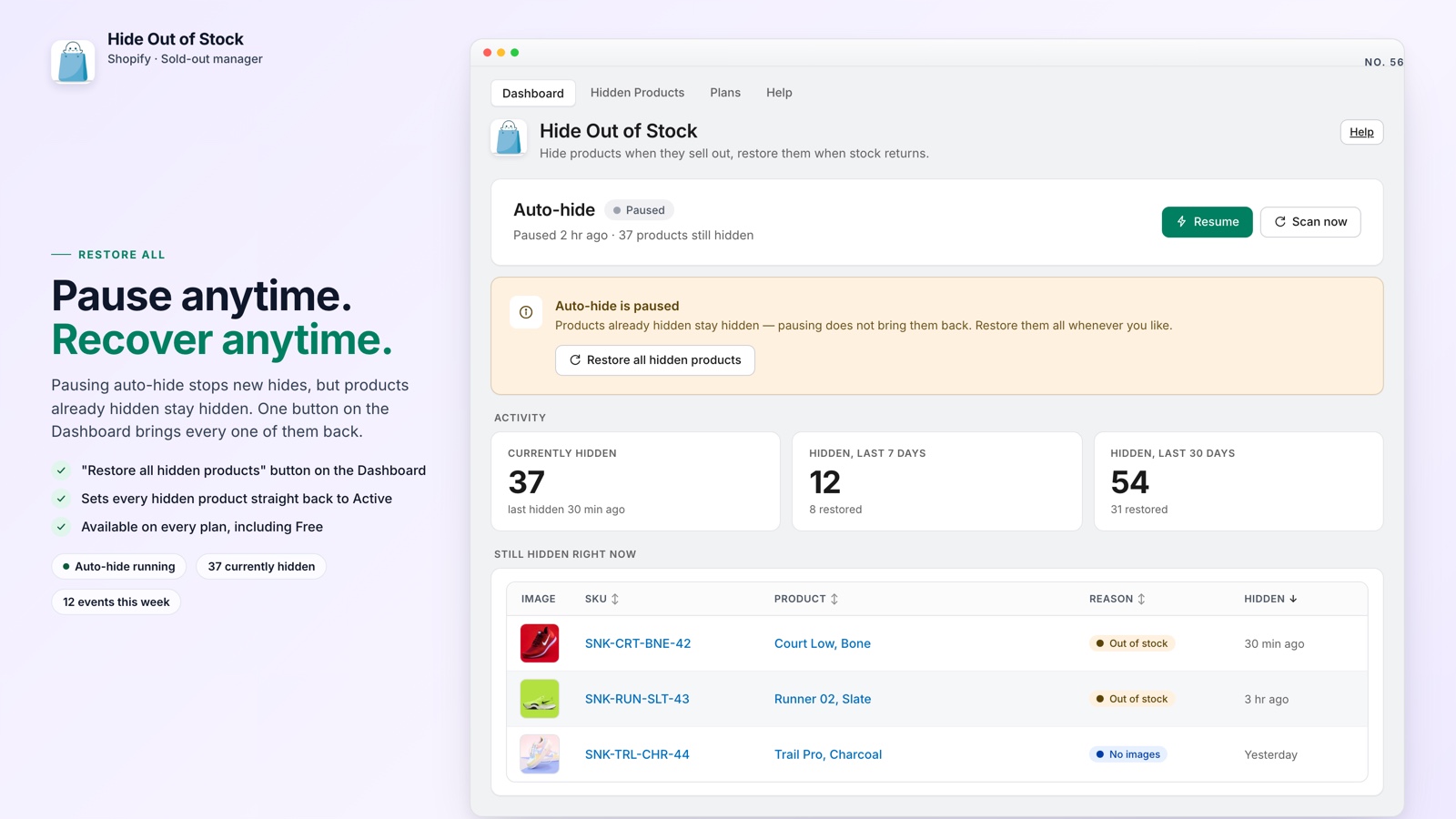
- A one-click catalog scan hides items that were already out of stock at install
- Starter plan access for $7.99/mo, with a 7-day free trial
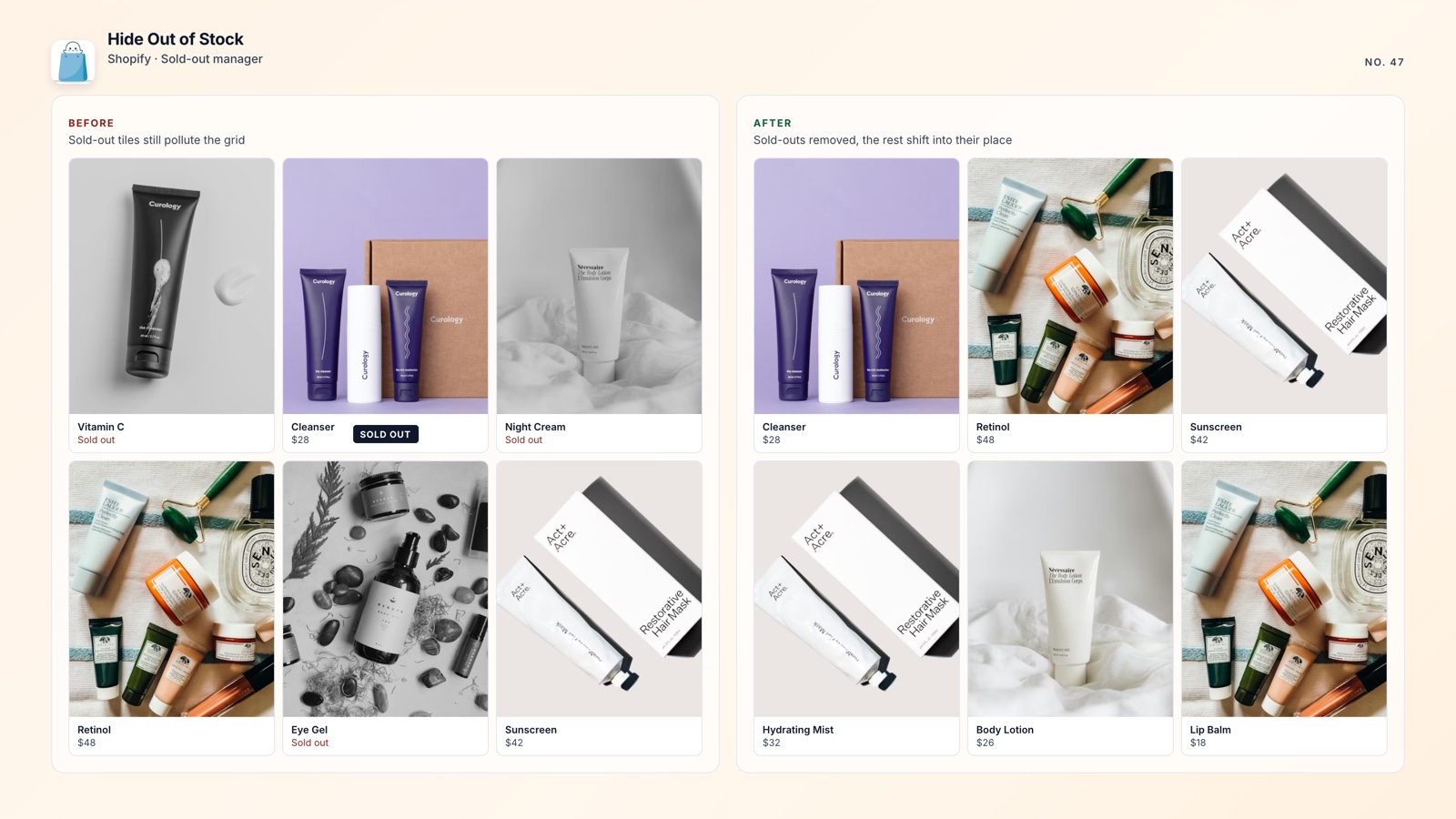
🚀 Why This Fix Matters
Greyed-out variants are more than a cosmetic issue. A shopper who clicks a crossed-out size and cannot move forward may leave the page. Hiding unavailable variants keeps the selector focused on options that can be purchased now.
The /collections/all page creates the same kind of friction. It can sit unnoticed until your analytics show a high bounce rate and little value from a URL that exposes your entire catalog.
Both problems have manual workarounds, but they take time and need attention after theme or catalog changes. An automated fix that costs $7.99 a month can pay for itself with one recovered sale.
If you want to understand what happens to search visibility when products go offline, read how sold-out products hurt your Shopify SEO.