You arrange a collection the way you want it, then need the same order in another collection, or a backup before a big reorder. Shopify has no way to save that order, export it, or copy it. Change the collection and the arrangement is gone.
🎯 Quick Summary
- Shopify has no built-in way to export or import a collection's product order.
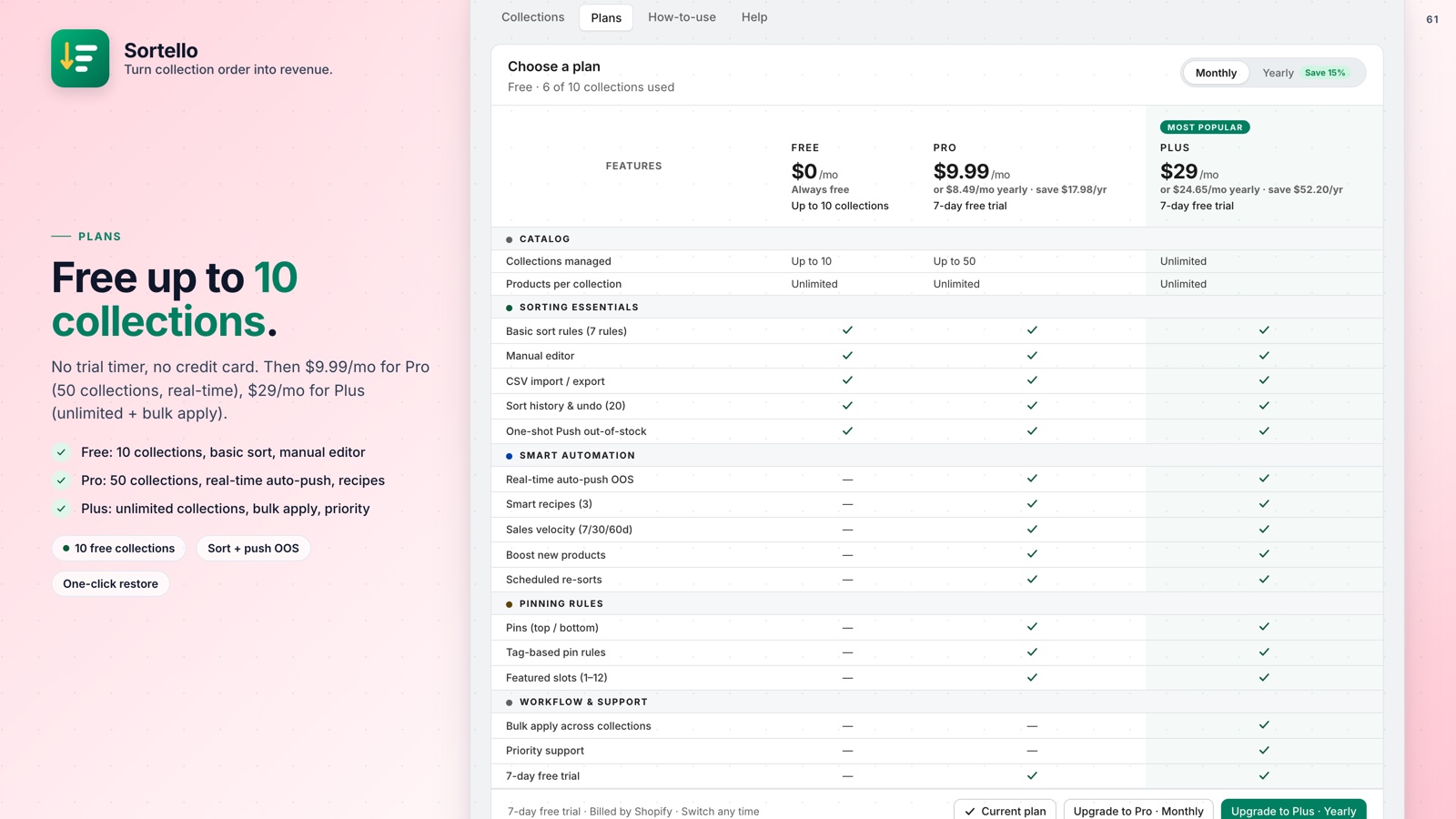
- Sortello adds CSV export and import on the Pro plan ($9.99/mo).
- The drag-and-drop editor and sort history are on every plan, including Free, and cover the same job for smaller collections.
- Sort history keeps the last 20 versions of each collection, each restorable in one click.
📤 How to Export and Import Shopify Collection Product Order (CSV)
You sorted your "Summer Sale" collection and want the same order in "New Arrivals," or a backup before a big reorder. Shopify gives you no export button, no CSV, no copy function.
Stores with seasonal collections rebuild this arrangement from scratch every few months. Products in the wrong position mean shoppers leave before finding what they want, and collection order affects your Shopify sales.
The manual route: open the collection, switch the sort to Manual, and drag products one page at a time. Drag-and-drop only works within the visible page, so moving a product from near the top to near the bottom of a large collection is impractical.
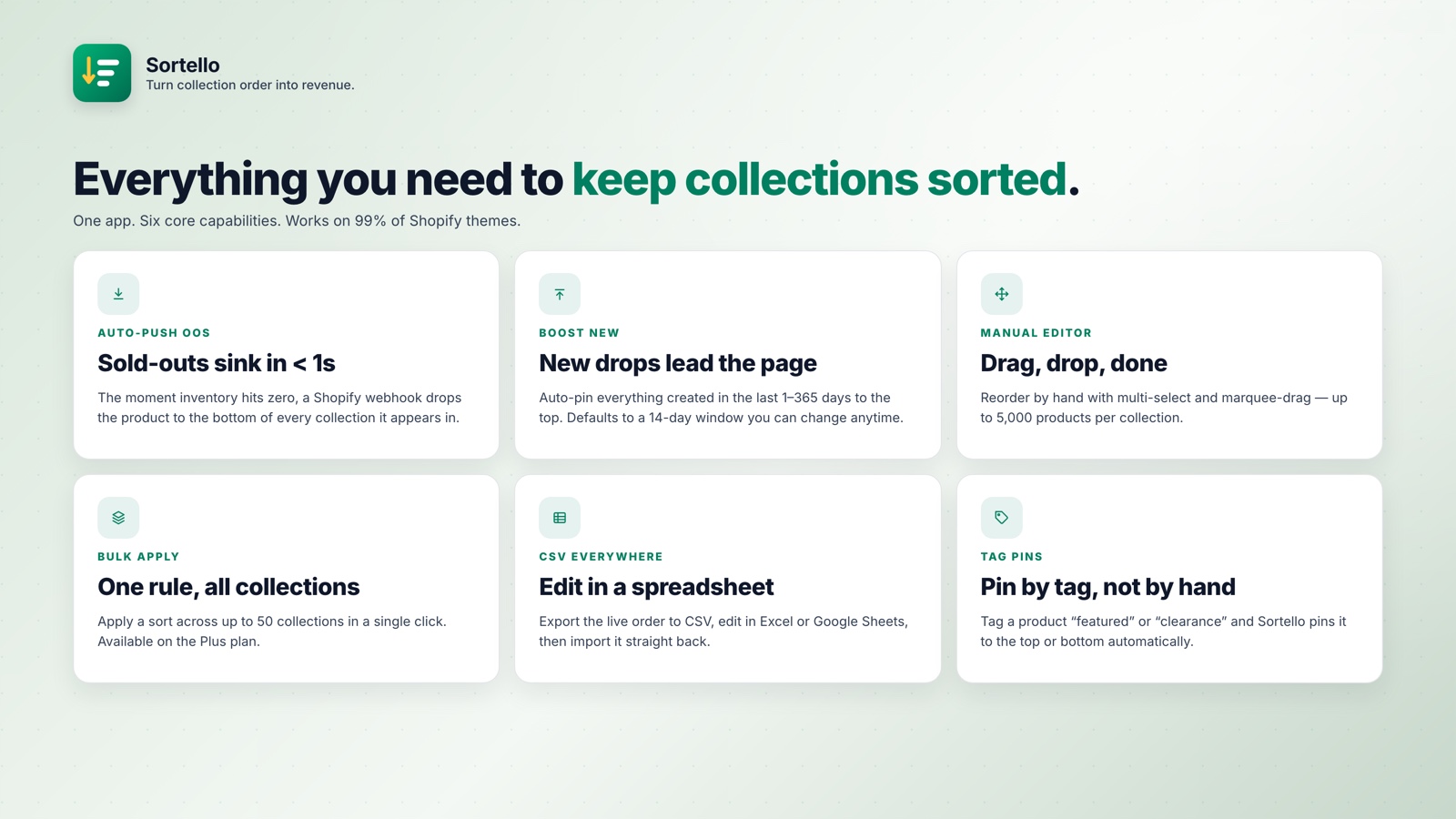
Sortello Pro adds a one-click CSV export of the collection's current order. Edit it in any spreadsheet, then re-import. The same file works as a backup, or as a way to copy one collection's order to another.
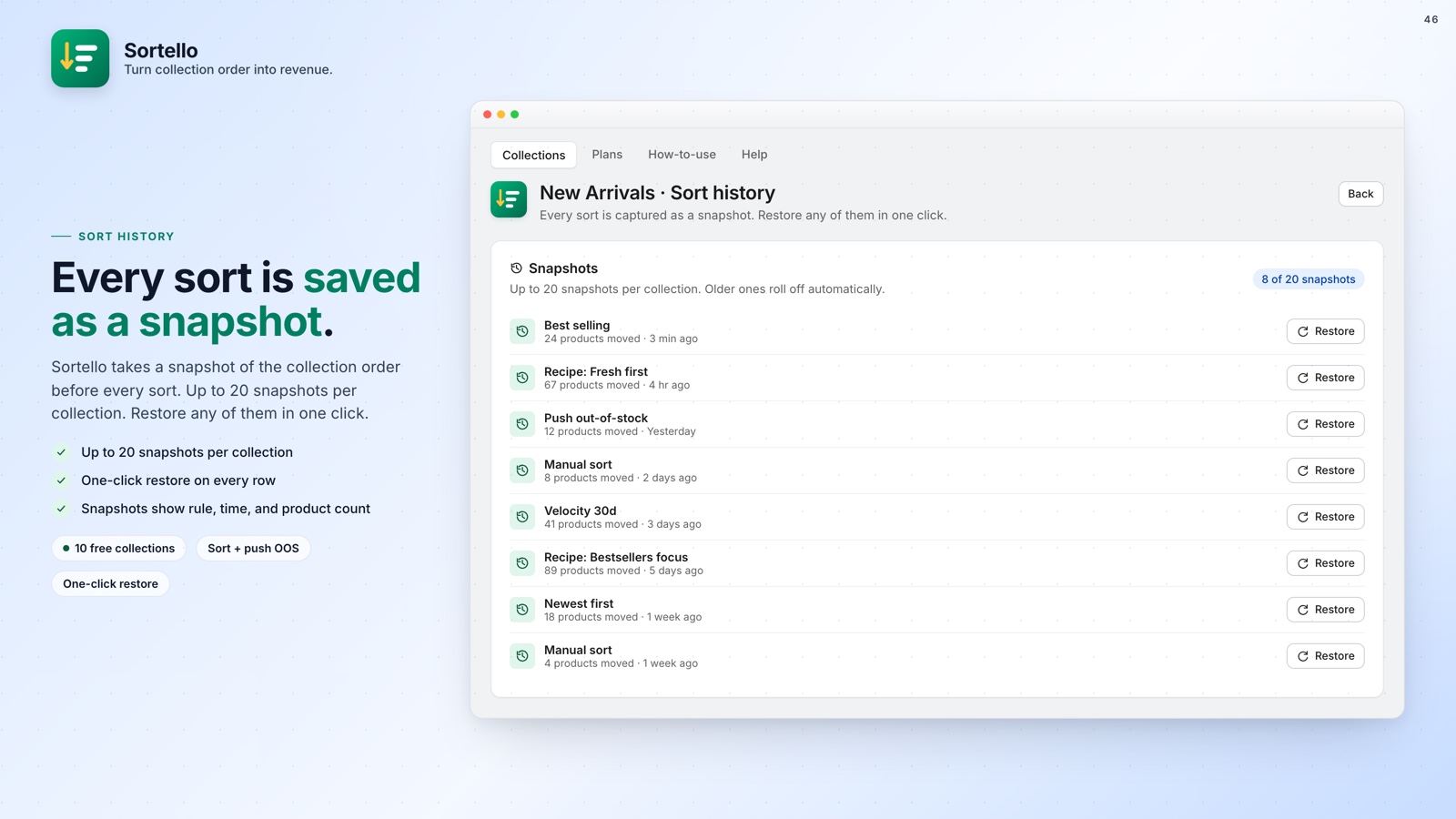
Sort history is the safety net, and it is on every plan. Sortello keeps the last 20 versions of each collection. If an import goes wrong, one click restores the previous order.
✋ Fine-Tune the Imported Order with the Manual Editor
A CSV import gets you most of the way. The last few positions often matter most: your hero product in slot 1, a weaker thumbnail moved down to position 40 instead of 4.
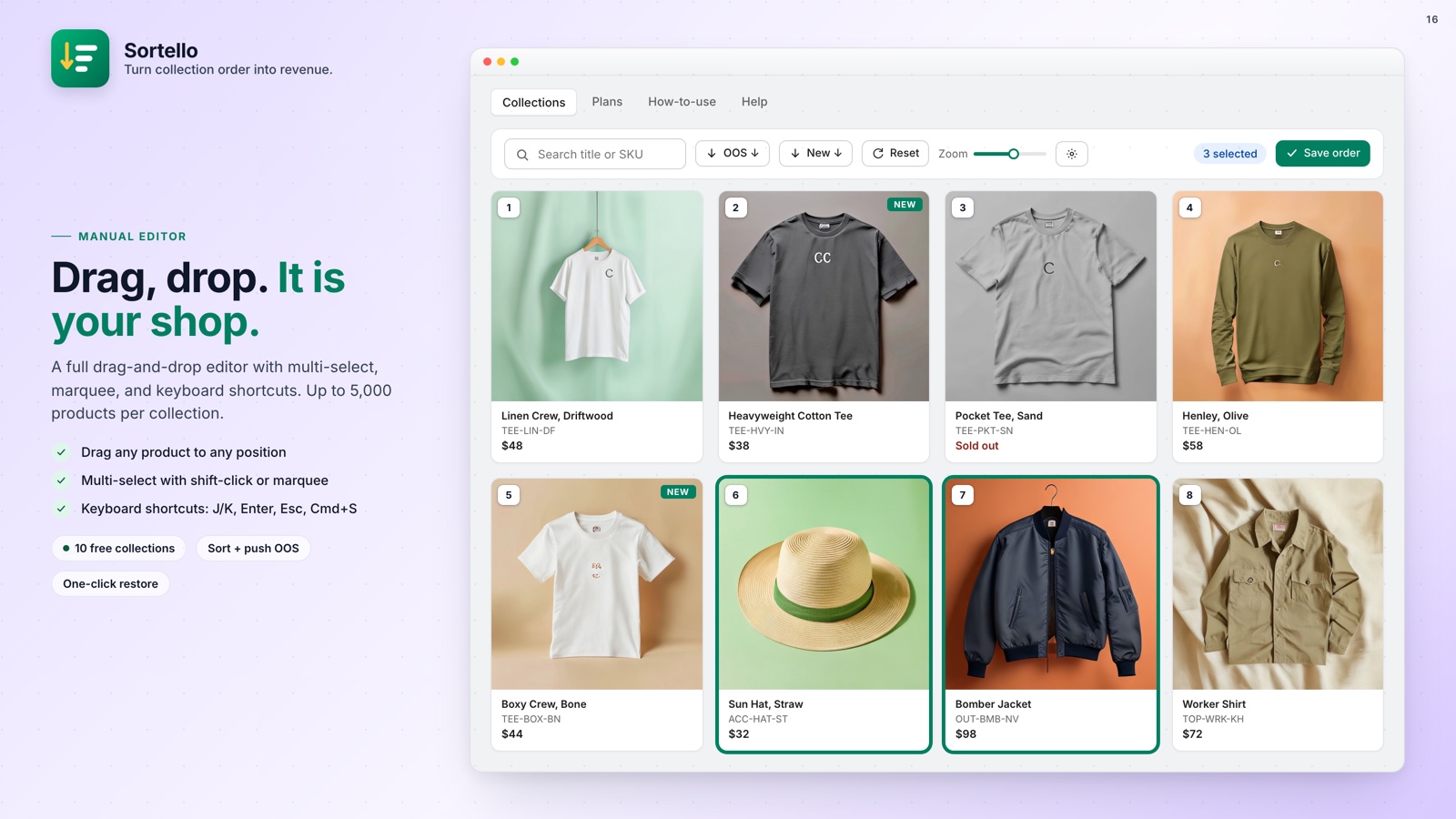
Sortello's drag-and-drop manual editor loads up to 5,000 products in one view and lets you multi-select to move groups at once. There is no "load more" step. Review the collection, move products, and publish to the live storefront. No theme code. The editor is on every plan, including Free.
You can layer rules on top. Run a one-click best-seller sort, then nudge a few items by hand before publishing. During a sale, featured slots (Pro) lock specific products to positions 1 through 12 while the rest sort by sales or stock level. Scheduled re-sorts (Pro) re-run any rule automatically, from every 6 hours to weekly.
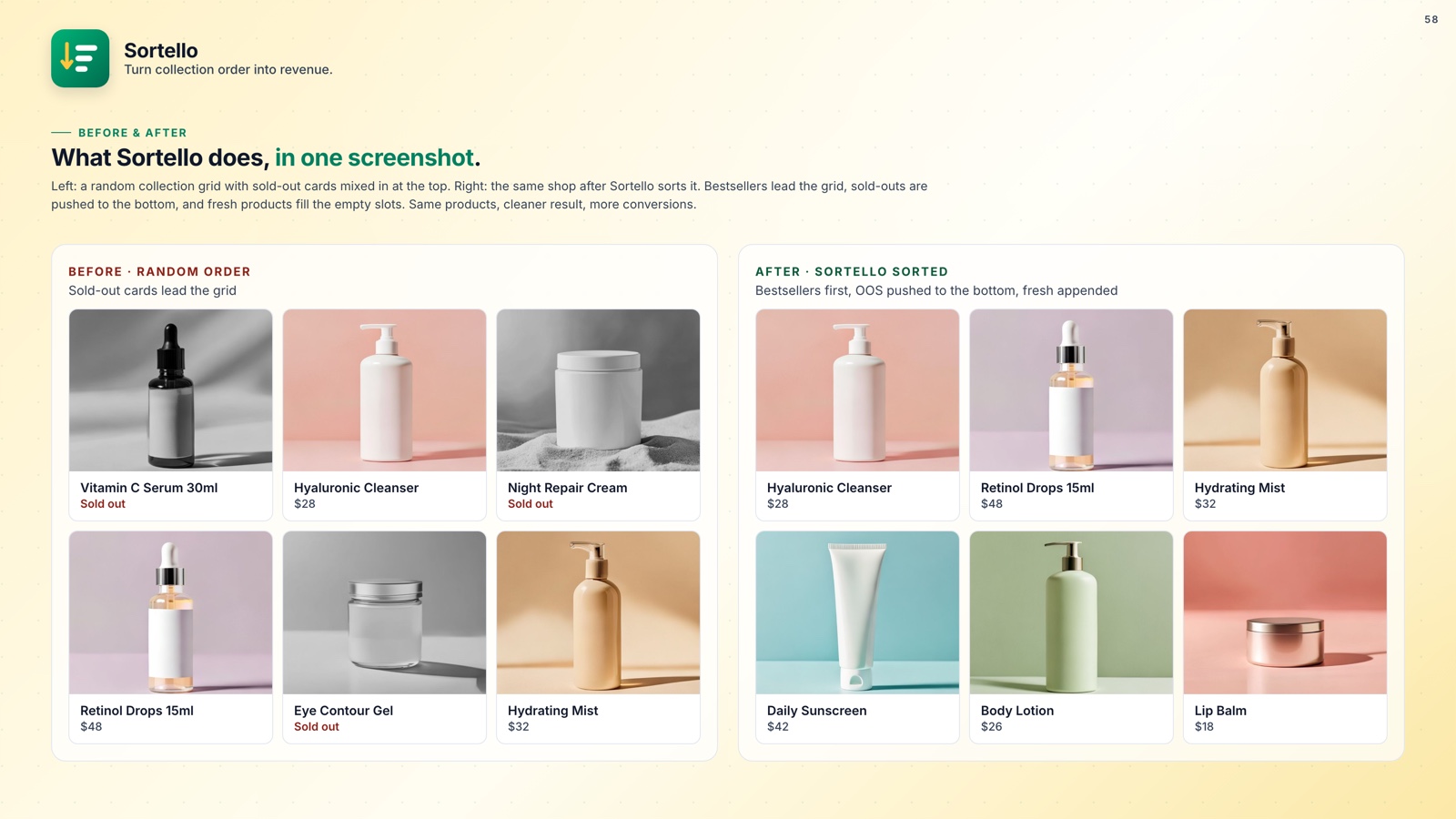
If out-of-stock products keep disrupting a sorted collection, Sortello Pro pushes them to the bottom in real time and moves them back up when stock returns.

Save and Reuse Your Collection Order
Fine-tune and lock your collection order in the drag-and-drop editor, free. CSV export and import are on the Pro plan.
What Sortello gives you:
- Drag-and-drop manual editor for up to 5,000 products per collection (all plans)
- Multi-select to move groups of products in one action (all plans)
- Sort history: the last 20 versions of each collection, one-click restore (all plans)
- 7 built-in sort rules plus a random shuffle (all plans)
- CSV export and import of collection product order (Pro)
- 2 smart recipes: Fresh first and Bestsellers focus (Pro)
- Featured slots to lock positions 1 to 12 (Pro)
- Real-time push of out-of-stock products to the bottom, with automatic restore on restock (Pro)
- Scheduled re-sorts from every 6 hours to weekly (Pro)
- No theme code, changes publish to the live storefront
🚀 Why This Matters
If your collections hold more than a handful of products, their order affects revenue. Shopify's native tools were not built for this level of control.
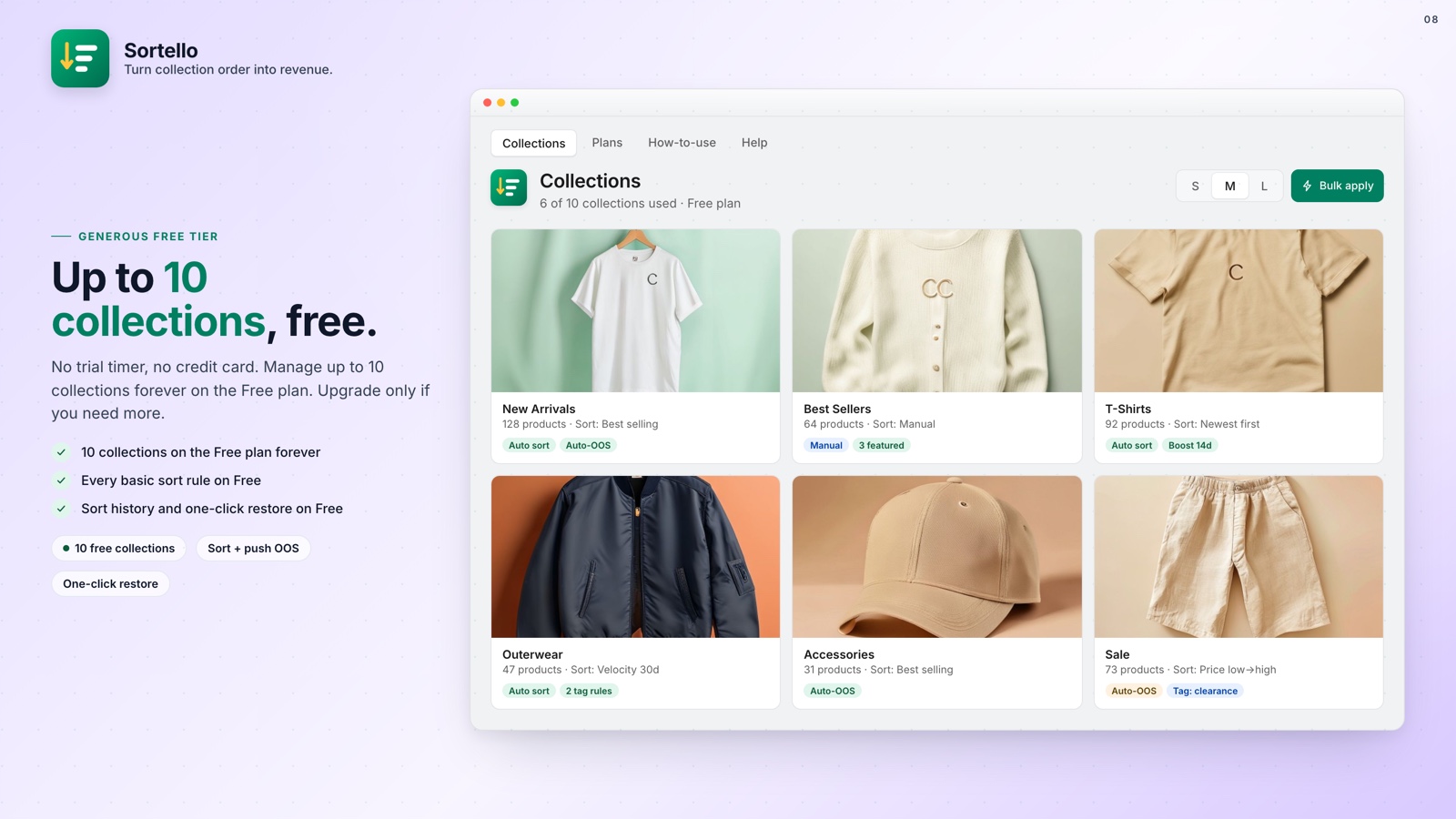
For stores that run seasonal or promotional resets, CSV export and import on Pro turn a repeated manual job into a saved file. On Free, the manual editor and sort history cover the same ground for up to 10 collections, with no time limit.
For the full set of rules and recipes, see how to sort Shopify collections automatically.